
Microsoft recently updated the way shared files are accessed in SharePoint, adding an extra layer of security to help protect your information. If you’ve received a link to your documents from our team and aren’t sure what to do next, this guide walks you through exactly what to expect.
Why did this change?
Microsoft rolled out this update to strengthen security around shared files. Because it’s a new process, it can look unfamiliar the first time you go through it — but rest assured, your files haven’t moved and nothing on our end is broken. This guide will walk you through each step.
Step-by-Step Instructions
Step 1: Click the link
When you click the shared link from our email, you’ll be taken to a Microsoft sign-in screen. Don’t worry — this is not asking you to have or create a Microsoft account. It’s simply asking for the email address we have on file for you. Enter your email address here.
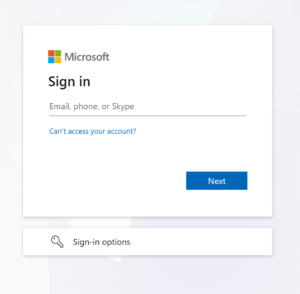
Step 2: Choose how to verify your identity
Microsoft will ask how you’d like to verify it’s really you. In our experince, the email address options is the simpliest one.
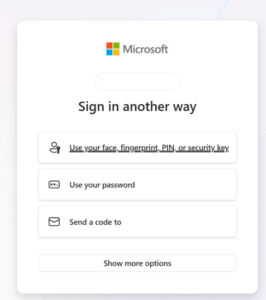
Step 3: Check your email for a code
Microsoft will send a one-time verification code to your email address.
Step 4: Copy the code
Open the email from Microsoft and copy the verification code provided.
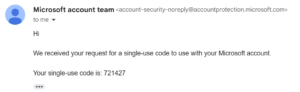
Step 5: Enter the code
Go back to the Microsoft sign-in window and enter the code you copied.
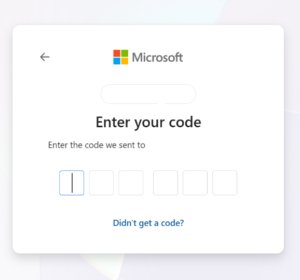
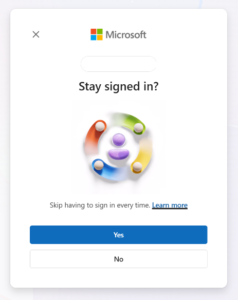
Step 6: Choose whether to stay signed in
Microsoft may ask if you’d like to stay signed in on this device. This is entirely your choice and won’t affect your ability to access your files either way.
Step 7: You’re in!
You should now have access to your shared files.