How to Access Your Files

Jun 30, 2026

From Dust to Transfer

Microsoft recently updated the way shared files are accessed in SharePoint, adding an extra layer of security to help protect your information. If you’ve received a link to your documents from our team and aren’t sure what to do next, this guide walks you through exactly what to expect.

Why did this change?

Microsoft rolled out this update to strengthen security around shared files. Because it’s a new process, it can look unfamiliar the first time you go through it — but rest assured, your files haven’t moved and nothing on our end is broken. This guide will walk you through each step.

Step-by-Step Instructions

Step 1: Click the link

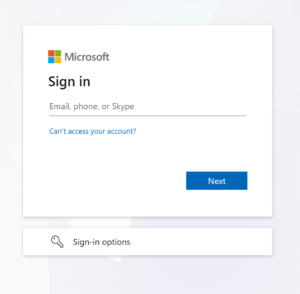
When you click the shared link from our email, you’ll be taken to a Microsoft sign-in screen. Don’t worry — this is not asking you to have or create a Microsoft account. It’s simply asking for the email address we have on file for you. Enter your email address here.
Step 2: Choose how to verify your identity

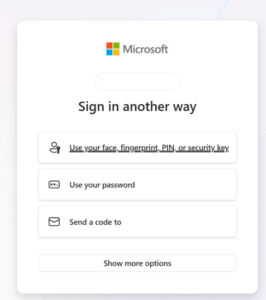
Microsoft will ask how you’d like to verify it’s really you. In our experince, the email address options is the simpliest one.
Step 3: Check your email for a code

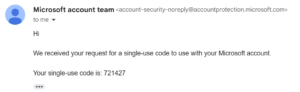
Microsoft will send a one-time verification code to your email address.

Step 4: Copy the code

Open the email from Microsoft and copy the verification code provided.
Step 5: Enter the code

Go back to the Microsoft sign-in window and enter the code you copied.

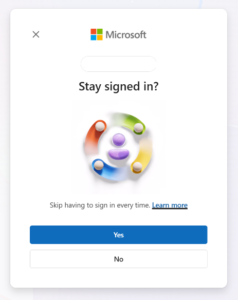
Step 6: Choose whether to stay signed in

Microsoft may ask if you’d like to stay signed in on this device. This is entirely your choice and won’t affect your ability to access your files either way.
Step 7: You’re in!

You should now have access to your shared files.

JOIN OUR NEWSLETTER

Subscribe to our newsletter to receive the latest tax news and ongoing updates.


Many taxpayers receive identity verification notices from the IRS, and in most cases, the process is straightforward and can be resolved without much difficulty.

You have the following options to verify your identity:

Option 1: Verify through the IRS using your ID.Me account


Option 2: Use the IRS Document Upload Tool

    • Please note when they ask for the access code answer "no" and put in the notice/letter type 5447C

    • Alternatively, we can upload the documents on your behalf. (Please note additional fees apply.)

For both options 1 and 2:

    1. Allow at least 30 days to process.
    2. You can then check your status on IRS Where's My Refund or request that we pull your transcript.


    Option 3: Call the IRS

      1. Phone number: 1-267-941-1083

      1. When calling the IRS please note that there could be long wait times. We recommend the best time to call is as close to 1PM Israel time as possible, when the lines first open.

    When speaking with the IRS agent:

      • Let them know you are calling in response to a Letter 5447C letter for tax year 202x.

      • Provide the control number as it appears on the first page of the letter.

      • Be prepared to answer any question they ask from the first 2 pages on both tax returns, including:

          • complete address

          • filing status (Head of Household /Married Filing Separately / Married Filing Joint/ Single)

          • refund amount.

      • If you are unsure of an answer you may ask the agent where it can be found on the return.

      • Know the dates of birth for you and the children on the return

      • Know your mother's maiden name

      • If they ask about W-2 income, tell them since you live outside of the US your income isn’t reported on a W-2, but rather the equivalent form 106 instead.

    They hopefully will not ask any more financial questions.

    If your identity is successfully verified during the call, the IRS will typically inform you immediately. Your refund should then be released within approximately 6-9 weeks.


    Documents Required in All Cases

    Regardless of the verification method you choose, you will need:

      • a copy of the 5447C letter you received

      • the first 2 actual 1040 pages of your 202x and 202x tax returns

    Additional Documents for ID.me or Document Upload Verification

    If you are verifying online through ID.me or using the IRS Document Upload Tool, you will also need:

    Two clear copies of acceptable identification, as listed in the IRS letter (for example passport and license).